Animate old photos with AI
Turn a scanned portrait or family photograph into a five-second video. Describe the movement, from a wave to an embrace.
5 seconds · Silent MP4 · 1 credit per video
What does AI photo animation do?
AI photo animation uses a still image as the starting point for a new video. You describe the movement, and the model generates the frames that follow. It imagines a possible moment. It does not recover a recording of what happened when the photograph was taken.
Choose a moment for your photo
A portrait can wave hello. A couple can lean closer. Use these ideas as a starting point, then describe a movement that suits your own picture.
A wave from a childhood portrait
Try one small action when you want the face and pose to stay close to the original.
A prompt to try The child looks toward the camera and gives a small, playful wave.
A familiar laugh
Describe a gesture as well as an expression to give a portrait more character.
A prompt to try She laughs warmly and briefly brings a hand to her chest.
A couple moving closer
For two people, ask for one clear interaction. A short, simple movement gives the model less to coordinate.
A prompt to try The couple turns toward each other, shares a brief kiss, and leans into an embrace.
These are actual KeepSway outputs made from AI-generated sample photos. The prompts above are shorter ideas to adapt, not the exact generation prompts. Your results will vary.
How to bring an old photo to life
No timeline to edit and no animation tools to learn. Everything happens in the studio.
- 1
Upload your photograph
Choose a photo from your device. For a printed photograph, use a clear scan or take a straight-on picture without glare.
- 2
Describe the movement
Use a quick suggestion in the studio or write your own prompt. Say who moves and what they do. You can edit the wording before creating your video.
- 3
Generate and download
Create the video, watch it in your library, and download the five-second MP4. The video is silent and ready to keep or share.
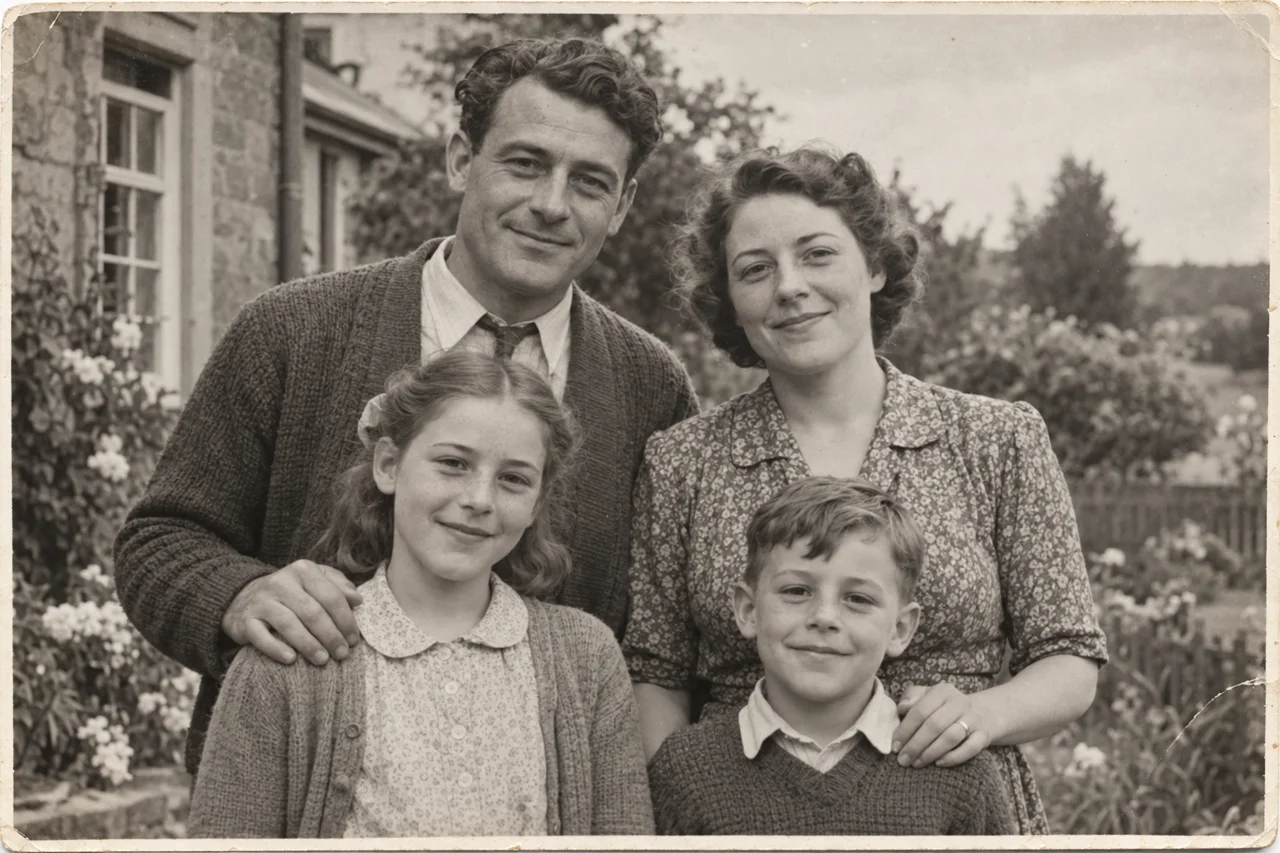
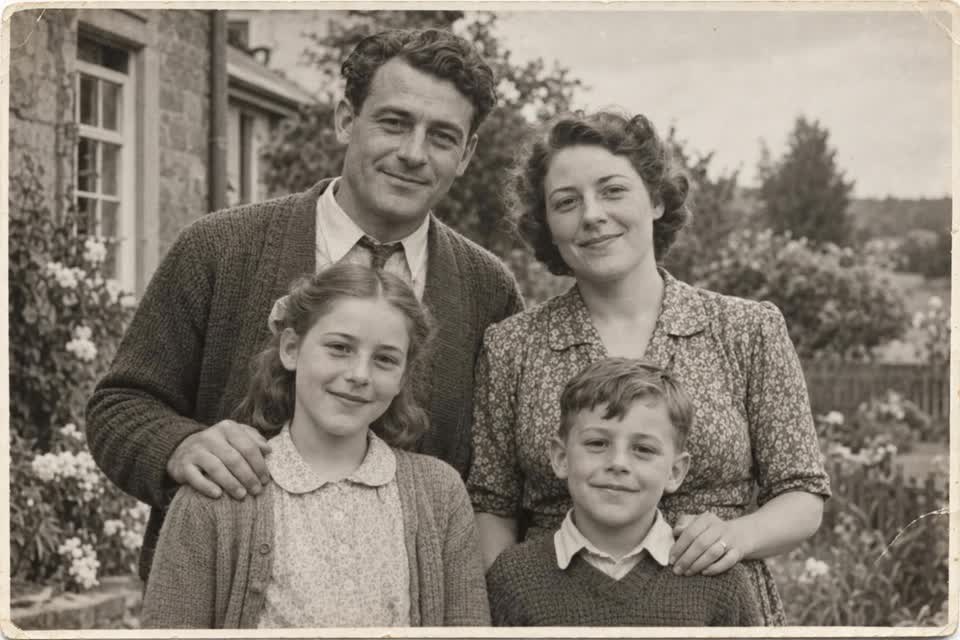
Start with a photo that gives the AI a clear view.
Keep faces clear
Choose an image with visible faces and enough detail to distinguish each person. Heavy blur, damage, or very small faces can make the result less consistent.
Give the movement room
A wave needs a visible arm. An embrace works better when people are already close together. Match your prompt to what is visible in the photograph.
Ask for one main action
Start with a short, specific direction. For a calmer result, ask for relaxed eyes, minimal blinking, and a still camera. These are instructions, not guarantees.
Questions about photo animation
Can I animate a black-and-white or sepia photo?
Yes. You can use a black-and-white, sepia, or color photograph. You do not need to colorize it first. The motion prompt can ask to preserve the original tones.
Does it work with family and group photographs?
Yes. Start with a picture where faces are clear and people are easy to distinguish. Ask for a simple shared moment, such as looking toward the camera or leaning closer. Several people moving at once can be less predictable.
Will it repair a damaged photo?
This effect creates movement. It is not a dedicated photo restoration tool. For a heavily damaged or blurred image, a clearer scan or a restored copy can be a better starting point.
Am I limited to preset expressions?
No. The studio has quick suggestions, but you can write your own movement prompt. Describe a wave, a turn, a laugh, or an interaction that fits the photo.
How much does a video cost?
One credit creates one five-second video. Credits are sold in packs without a subscription. A failed generation returns its credit. See the credit packs page for current prices.
View credit packsWill my family photos appear in a public gallery?
No. Your uploads and videos stay private in your account. The examples on this page use AI-generated sample photos. Read our privacy policy for details about processing and storage.
Read the privacy policy